Seller Dashboard Guide
Referral links, requests, commission and payouts
Download PDF guideScreens show the DR Reps interface with sample records. Use your own store details and order numbers.
1. Your role and the private dashboard
You are a referral partner. You earn commission on eligible attributed deals; DR Reps owns the website and manages the catalog, sourcing, quotes, payment and delivery.
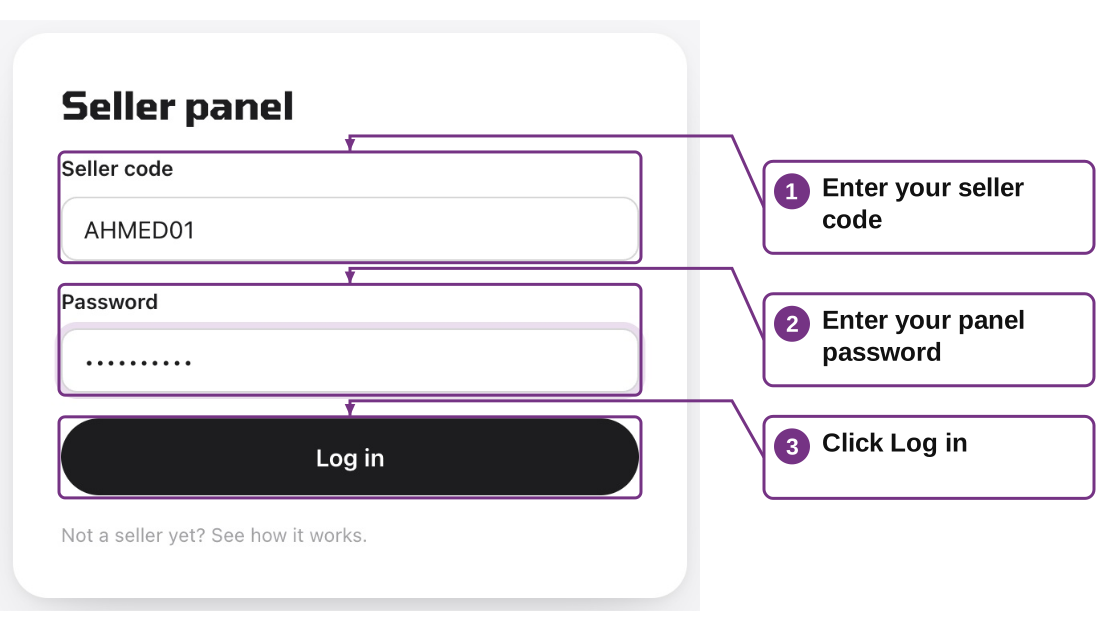
- Enter your code. Open https://dr-reps.com/seller and enter the code issued by the owner, such as the sample AHMED01. There is no automatic referral registration.
- Enter your password. Type the private panel password issued by the owner. Keep it separate from a customer account password.
- Log in. Click Log in. Your private Overview opens, with your referral link, requests and earnings. The next topics show the real navigation and sharing controls.
2. Sign in on a computer or phone
Use the same seller code and password on both devices.
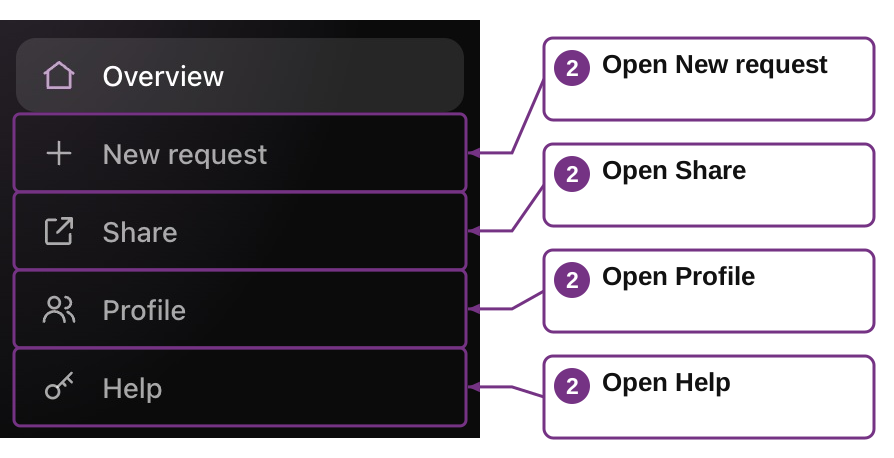
- Open. Add /seller to the DR Reps store address and enter Seller code and Password, then Log in.
- Computer navigation. Use Overview, New request, Share, Profile and Help in the sidebar.
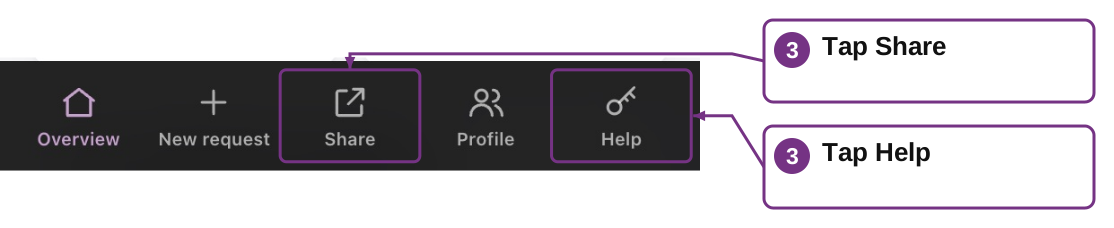
- Phone navigation. Use the bottom navigation. Scroll the page to see stacked earnings cards and request rows.
- Access problems. Wrong code/password needs correction; repeated wrong attempts trigger a 15-minute wait. If paused, contact the owner.
- Finish. Log out on a shared device. Do not share your password with customers.
3. Share your main referral link
The Overview card contains Your link. This is for customers, and contains no login password.
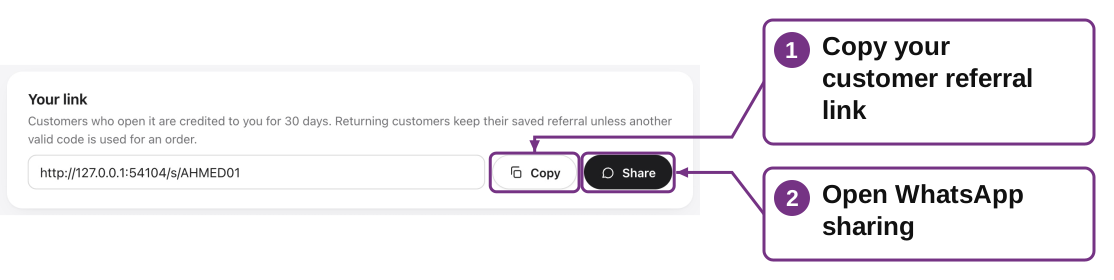
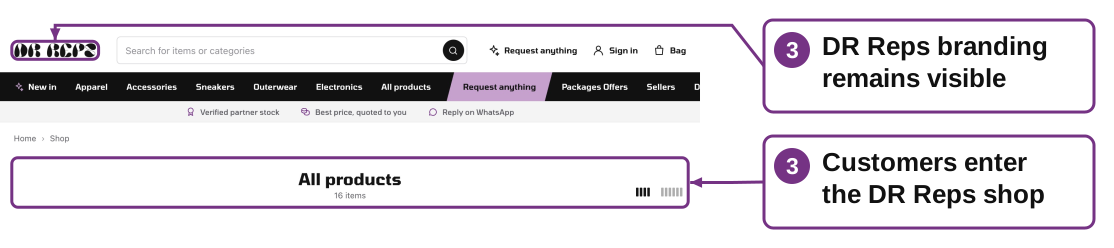
- Copy. Click Copy next to Your link. Paste it in your message, post or other permitted channel.
- Use WhatsApp. Click Share, review the prepared message and choose the recipient. Press Send in WhatsApp.
- Test. Open the link. It should lead to the DR Reps shop, with no Shop with Ahmed or seller-branded catalog.
- Ask customers to use it. The active link records a referral in that browser for 30 days. The customer then requests through DR Reps.
- Use accurate wording. Example: “Browse DR Reps here. Prices are quoted by the store after your request.” Do not claim you own stock or guarantee availability.
4. Share a specific DR Reps product
Share offers links for the store’s visible catalog products, each carrying your code.
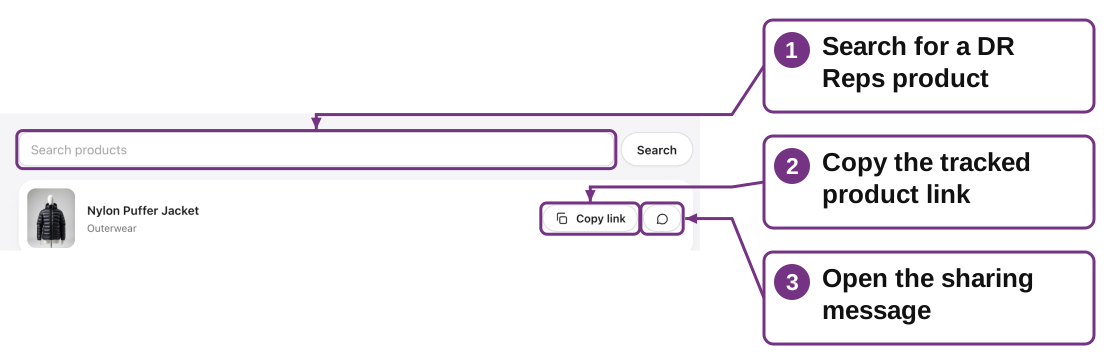
- Find a product. Open Share and search by product, brand or category.
- Copy the right link. Use Copy link on the matching product. The address includes ?ref=YOURCODE.
- Send. Paste it into your message, or click the WhatsApp button and press Send after reviewing the message.
- Keep the code. Removing the ref parameter from the URL removes this link’s explicit referral information.
- Explain the next step. The customer selects sizes/quantity and requests a quote from DR Reps. Product links do not reserve stock or set a selling price.
A shared product belongs to the DR Reps catalog. The Share list is capped at 60 visible results; search to narrow it.
Back to guide contents5. Share package offers accurately
The Share page includes Packages Offers with links carrying your referral code.
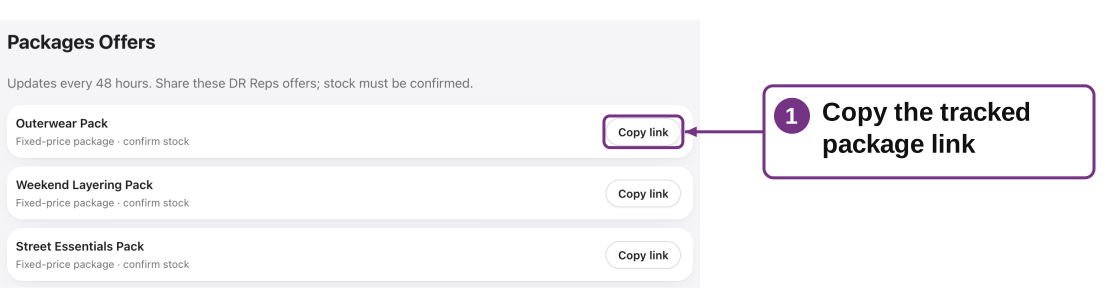
- Copy the package link. Find the bundle in Packages Offers and click Copy link. Preserve ?ref=YOURCODE when sharing.
- Explain the terms. State what one package contains and its listed price. Include Updates every 48 hours and explain that DR Reps must confirm stock.
- Send to DR Reps. The customer signs in, selects options/quantity and requests stock confirmation. They send the prepared WhatsApp message to the store.
- Follow the deal. The owner confirms and quotes the request. Eligible Won package requests follow the same agreed commission basis, rate and payout process.
- Keep merchant roles separate. Marketplace Sellers are independent shops. Their direct enquiries do not earn tracked DR Reps referral commission in this version.
Do not describe a package or marketplace shop as your stock or your store. You cannot confirm availability, create a quote code or accept payment through the referral panel.
Back to guide contents6. Understand the two codes
Your seller code is a referral/discount code. A price code is created by the owner for a particular customer order.
Seller code, e.g. AHMED01
Used in /s/AHMED01, product?ref=AHMED01, your seller login, and the customer’s optional discount field.
Price code, e.g. ABC-DEF
Sent by DR Reps for a particular order. Unlocks the price; a changed price generates a new one.
Code without a link
A customer can apply your active seller code after unlocking a quote and before payment. This attributes the order to your code.
Configured discount = 0%
The valid seller code can still attribute the order even though the customer total does not decrease.
Discount does not stack
The order uses one current referral/discount code and the store’s configured percentage.
Customer asks you for a quote code
Direct the customer to DR Reps. You cannot generate or change price codes in the seller panel.
7. Referral rules and returning customers
Commission attribution follows saved request data. Opening a link is not itself an earned sale.
New customer opens your active link
The current browser receives a 30-day referral cookie. Requests can be attributed to your code.
Customer later uses the same account
Their saved customer referral can provide attribution after the browser cookie expires.
Another valid referral is used
That new code can attribute the current order. The original saved customer referral is not automatically rewritten.
Customer switches device before signing up/requesting
The unsaved browser cookie does not move to the other device. Ask them to open the link there or use the valid discount code before payment.
Another discount code is applied
The applied active code replaces attribution on that order. The owner can also correct attribution in the request.
Your account is paused/deleted
New links/code validation requires active status. Existing saved referrals and history need owner review; do not assume automatic removal.
8. Log an in-person or phone enquiry
Use New request when a customer asks you directly and wants the request passed to DR Reps.
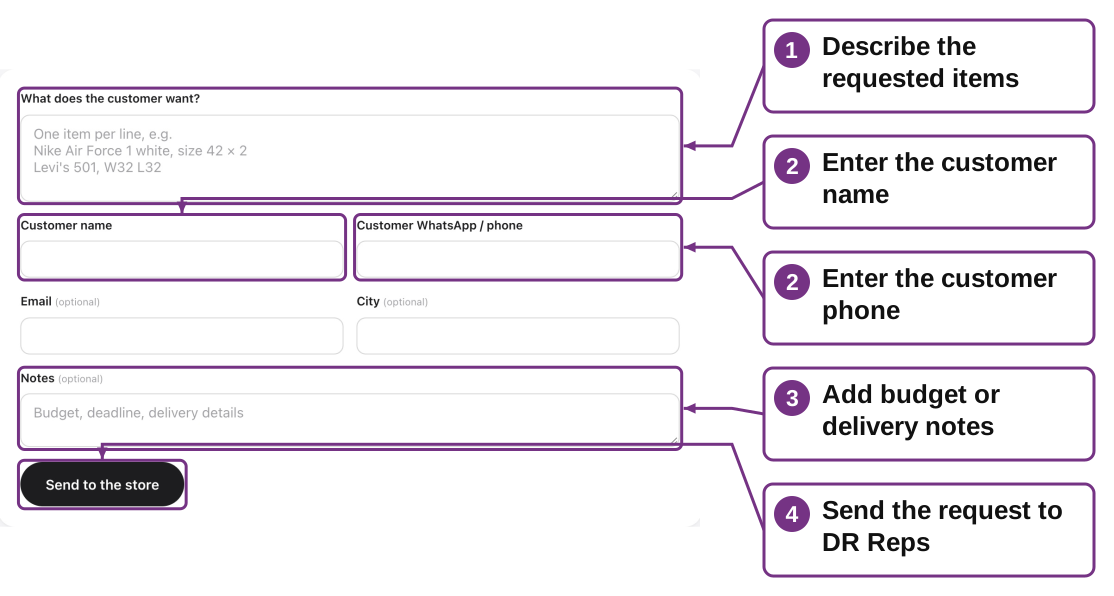
- Describe items. Enter one item per line under What does the customer want? Include size, quantity, colour and condition in the text.
- Enter contact. Fill Customer name and WhatsApp / phone. Email and City are optional.
- Add notes. Include budget, deadline, delivery context or acceptable alternatives.
- Submit once. Click Send to the store. The request is credited to your code and appears in your Overview.
- Hand over. Explain that DR Reps will source and quote it. This seller form does not create a customer login or send a customer WhatsApp message for you.
Seller-logged enquiries do not automatically appear in the customer’s My orders account. The store and your panel track them separately.
Back to guide contents9. Update your private profile and password
Profile stores your contact details for the owner and optional request alerts. It is not a public seller storefront.
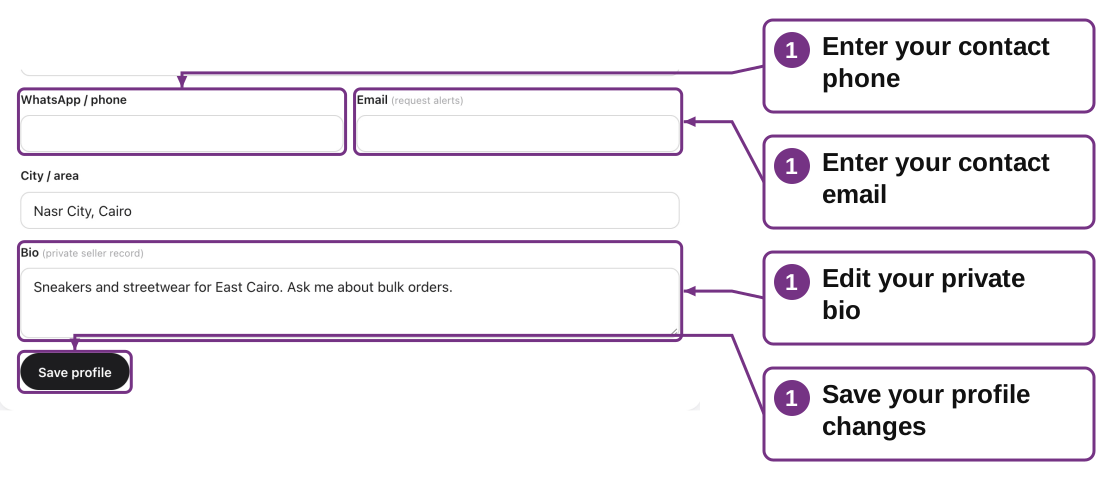
- Contact details. Edit WhatsApp / phone, Email, City / area and private Bio, then Save profile.
- Photo. Use Change photo if needed. JPG, PNG, WEBP or GIF up to 3 MB is accepted.
- Name and code. Your displayed name is read-only here, and the code is fixed. Ask the owner about a name correction.
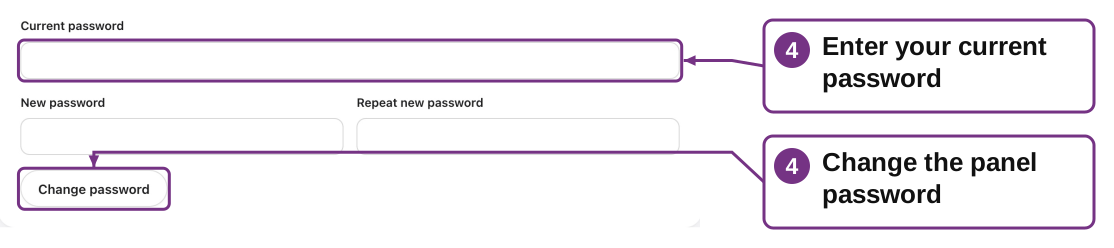
- Change password. Enter Current password, a New password of at least 8 characters, and Repeat new password. Click Change password.
- Reset if locked out. Ask the owner to issue a new password. Changing/resetting the password signs out old sessions on other devices.
Request emails depend on the store’s email connection and your saved email address. Use Overview if an alert does not arrive.
Back to guide contents10. Read requests and earnings
Overview separates work in progress, successful deals and payout records.
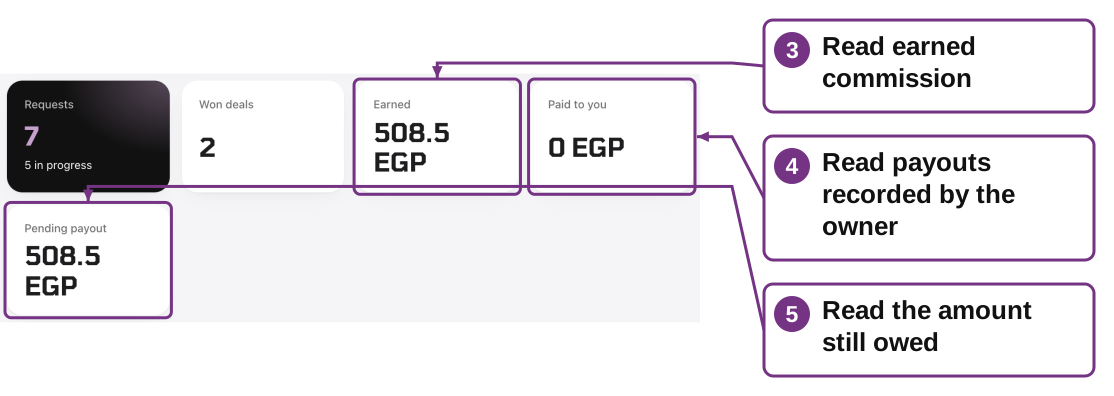
1. Requests / in progress
Requests carrying your code; New, Searching and Quoted count as in progress.
2. Won deals
Requests marked Won with customer Payment = Paid. Only eligible paid, won requests generate commission.
3. Earned
Commission calculated on all eligible paid, won requests attributed to you.
4. Paid to you
The portion marked paid by the owner, including a payout recorded before a later refund. It is a record flag, not an automatic bank transfer.
5. Pending payout
Earned minus payouts on still-eligible deals. A refunded deal already marked paid needs a separate adjustment.
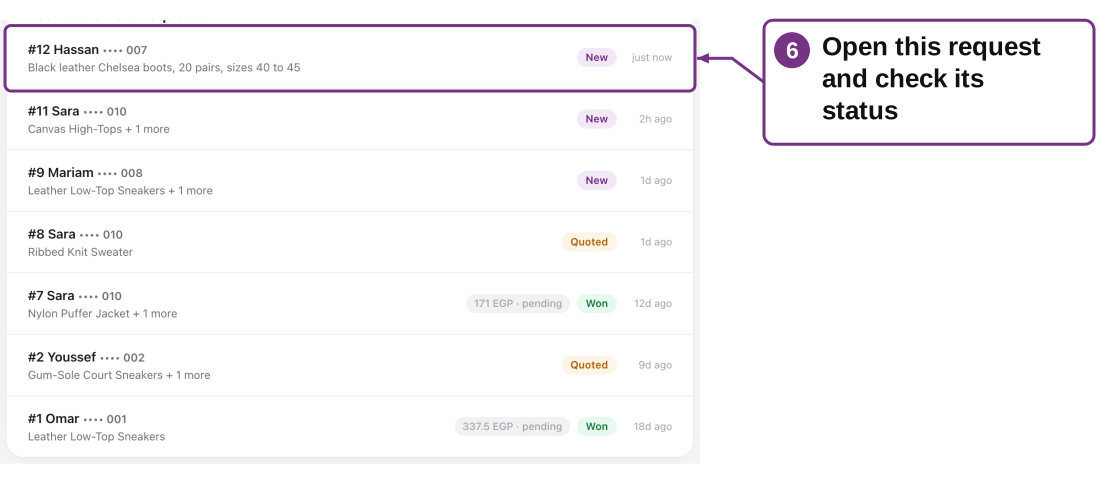
6. Request rows
Use request number, item summary, status and commission label. Customer phones are masked, and you cannot edit the deal or see other partners’ requests.
Seller Overview totals include all your attributed requests. The request list shows the latest 200; ask the owner for older request details or a payout reconciliation.
Back to guide contents11. How your share is calculated
The owner sets the commission rate and chooses Profit or Sale price as the basis. Check your agreed terms before promoting.
- Discounted customer amount. The customer amount is quoted price minus the applied percentage discount.
- Profit basis. Commission is your rate × (customer amount − supplier cost), with a minimum of zero.
- Sale basis. Commission is your rate × customer amount, regardless of supplier cost.
- Example: profit. Quote 1,000; discount 5%; cost 600; rate 10%. Customer pays 950; profit 350; your commission 35.
- Example: sale. With those same figures and 10% of Sale price, your commission is 95. These are examples, not promised earnings.
Clicks, requests and quotes do not earn money by themselves. Eligible commission requires Won status, customer Payment = Paid and a saved rate. Refunded deals leave earned and owed totals; an already-sent payout needs manual reconciliation.
Back to guide contents12. From referral to payout: the lifecycle
Follow a request using its number in Overview.
1. Share
Send your active referral or product link. Customer browses DR Reps.
2. Request
Customer submits, or you log a direct enquiry. The request carries the referral code.
3. Source and quote
Owner moves New → Searching → Quoted, finds availability and sends the customer a price code.
4. Customer decision
Customer unlocks, optionally applies a discount code, then accepts or declines through DR Reps.
5. Won and fulfillment
Owner records a successful deal and customer payment; delivery progresses separately. Eligible commission appears as pending.
6. Payout
Owner pays by the agreed method outside the website and marks the commission paid. Paid to you increases and Pending payout decreases.
13. Get paid and resolve a mismatch
There is no withdrawal button or automated payout transfer. Coordinate payout with the owner.
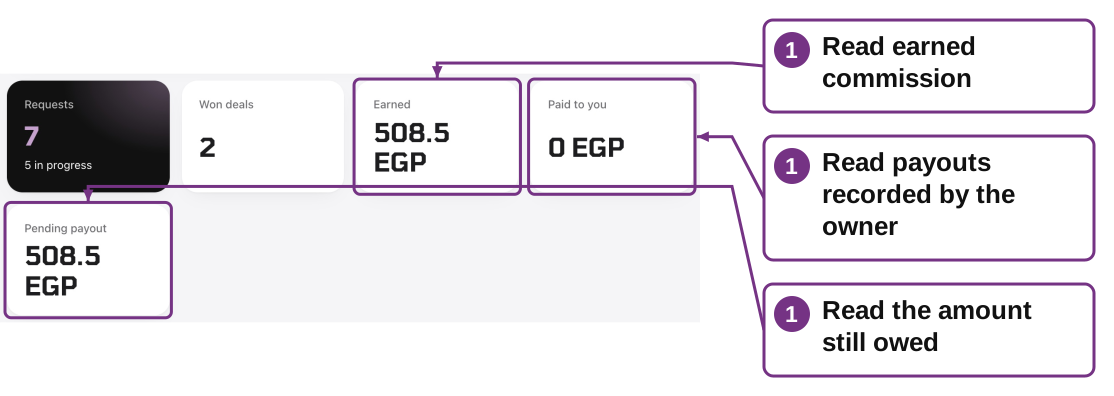
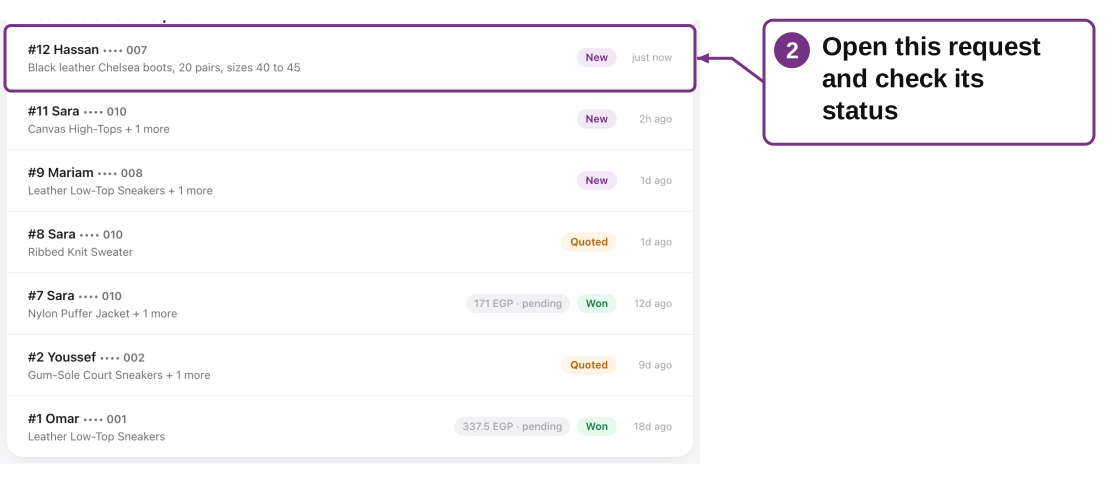
- Review. Check Earned, Paid to you, Pending payout and the request-level amounts.
- Provide a reference. Contact the owner with your code and specific request numbers, not just a screenshot of a total.
- Confirm payout. Verify the actual payment through the agreed method. Ask the owner to mark the correct deals paid after receipt.
- If marked paid incorrectly. Tell the owner which deal/amount you did not receive. The owner can Undo paid; that does not itself move money.
- If commission looks wrong. Ask the owner to review order attribution, discount, supplier cost, stored rate and the selected commission basis.
The website does not define a payout schedule, minimum threshold, bank method or tax rule. Agree those terms directly with the owner.
Back to guide contents14. Lost orders, refunds and paused accounts
Customer declines / item unavailable
The owner may mark Lost. Lost requests do not contribute earned commission.
Customer has not paid
Do not promise earned commission solely because a quote exists. Ask the owner about the successful-deal criteria.
Refund after a Won deal
Owner marking Payment = Refunded moves the deal to Refunded and removes its commission from earned and owed totals. A recorded payout remains visible in Paid to you until reconciled.
Commission was already paid, then refund
Agree the adjustment with the owner. The dashboard does not automatically claw back a bank transfer.
Account paused
Login and new active-code validation stop. Contact the owner to resolve the reason and reconcile past deals.
Account deleted
Past request codes remain in history, but login is removed. Ask the owner for final reconciliation; there is no seller self-reactivation.
15. Seller troubleshooting and handover
No requests appear
A link click alone is not a request. Check the correct code/link and ask the owner to inspect the request’s attribution.
Customer used the plain website
Have them use your active link or valid discount code before payment if appropriate; the owner can review an attribution correction.
Product link is unavailable
Search for a current product or ask the customer to use Request anything. Do not claim unavailable stock exists.
Customer needs price, delivery or return help
Send them to DR Reps with their order number. You cannot edit those fields in the seller panel.
Forgot password / paused
Contact the owner for reset/reactivation. Repeated wrong login attempts require a 15-minute wait.
Handing over the role
Keep code, agreed rate/basis, unresolved request numbers and payout references. Never pass your password to customers or describe the shop as yours.